
How to Integrate Salesforce with Personnect: A Complete Setup Guide
Introduction
Your sales team makes hundreds of calls every day. Each call generates data: dispositions, transcripts, sentiment scores, action items. Without CRM sync, reps spend minutes after every conversation manually logging outcomes. That adds up to hours of lost selling time each week.
This guide walks you through connecting Salesforce to Personnect step by step. You'll create 23 custom fields on the Task object, 18 on the Contact object, and link everything through OAuth. The entire process takes about 30 minutes. By the end, every call will automatically push 20+ data points straight into your CRM, with zero manual entry from your reps.
Key Takeaways
- Personnect syncs 23 call fields to Salesforce Tasks and 18 fields to Contacts automatically
- Setup requires Salesforce admin access and takes roughly 30 minutes
- Call data includes transcripts, sentiment analysis, talk ratios, and AI-generated action items
- The connection uses standard OAuth, so no API keys or custom code needed
- You can customize exactly which fields sync and how they map
What Gets Synced?
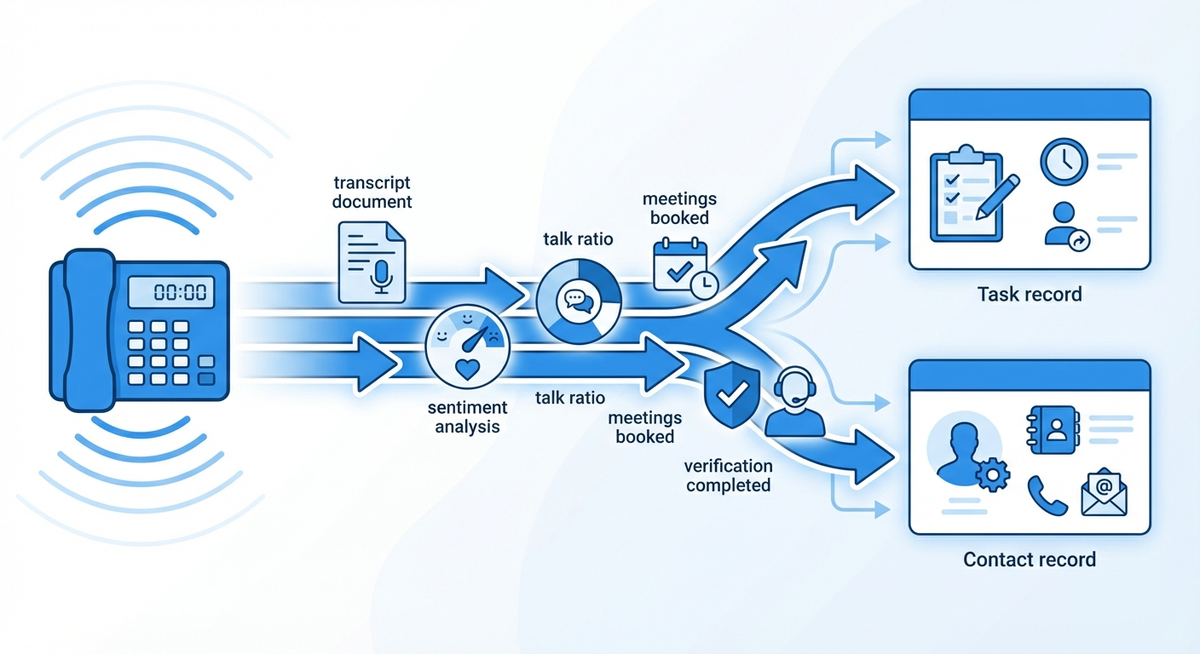
Personnect pushes data into two Salesforce objects after every call. The Task object receives call-level data like transcripts, duration, and AI analysis. The Contact object gets updated with status changes, pipeline stages, and verification details. Together, these two flows capture a complete picture of every conversation.
Call Data to the Task Object
Each completed call creates or updates a Task record with 23 fields. These cover the basics like duration and direction, plus AI-generated insights like disposition, sentiment scores, and action items. The full transcript lands in a Long Text Area field, giving managers and reps searchable call records without leaving Salesforce.
Contact Updates to the Contact Object
Alongside the Task record, Personnect updates 18 fields on the associated Contact. This includes the contact's current status, last disposition, verification type, LinkedIn URL, pipeline stage, and more. Your contact records stay current without anyone touching them manually.
Prerequisites
Before you start building fields, confirm you have three things ready. Missing any of these will stall the setup, so check them off first. The actual configuration is straightforward once your access and account are in order.
- Salesforce admin access. You need permission to create custom fields on the Task and Contact objects. A System Administrator profile works. If you're not an admin, ask one to pair with you for this setup.
- Personnect account with CRM integration enabled. Your Personnect plan must include CRM integrations. Check under Settings to confirm. If you don't see the Integrations tab, contact your account manager.
- About 30 minutes of uninterrupted time. The field creation is repetitive but simple. Budget half an hour and you'll finish comfortably.
Step 1: Create Task Custom Fields
You'll create 21 custom fields on the Task object, grouped into five categories. Two fields, Subject and Description, use standard Salesforce fields and don't need custom creation. For each field below, navigate to Setup, then Object Manager, then Task, then Fields & Relationships, then click New.
The path is always the same: Setup → Object Manager → Task → Fields & Relationships → New. Select the field type, name it exactly as shown, and save. Repeat for each field in the group.
Call Details (5 Fields)
These fields capture the basic metadata of every call.
| Field Label | API Name | Field Type | Notes |
|---|---|---|---|
| Duration | Duration__c | Number | Call length in seconds |
| Call Direction | Call_Direction__c | Text (20) | Inbound or Outbound |
| Call Date/Time | Call_Date_Time__c | Date/Time | Timestamp of the call |
| From Number | From_Number__c | Text (20) | Caller phone number |
| To Number | To_Number__c | Text (20) | Recipient phone number |
Set the field-level security to visible for all profiles that need call data. Sales reps and managers should both have read access at minimum.
AI Analysis (8 Fields)
These fields hold the AI-generated insights from each call. They're what make the integration valuable beyond basic call logging.
| Field Label | API Name | Field Type | Notes |
|---|---|---|---|
| Disposition | Disposition__c | Text (100) | AI-classified call outcome |
| Disposition Confidence | Disposition_Confidence__c | Percent | Confidence score for the disposition |
| Call Result | Call_Result__c | Text (100) | Detailed result category |
| AMD Result | AMD_Result__c | Text (50) | Answering machine detection result |
| Overall Sentiment | Overall_Sentiment__c | Text (20) | Positive, Negative, or Neutral |
| Sentiment Score | Sentiment_Score__c | Number(3,2) | Numeric sentiment value, -1 to 1 |
| Rep Sentiment | Rep_Sentiment__c | Text (20) | Rep's tone during the call |
| Prospect Sentiment | Prospect_Sentiment__c | Text (20) | Prospect's tone during the call |
Use Text fields for Disposition and Sentiment rather than Picklists. Personnect generates these values dynamically, so a Picklist would require constant updates as new categories appear.
Talk Analytics (2 Fields)
Talk ratios show how much each party spoke during the call. These are critical for coaching. A rep who talks 80% of the time probably isn't asking enough questions.
| Field Label | API Name | Field Type | Notes |
|---|---|---|---|
| Rep Talk Ratio | Rep_Talk_Ratio__c | Percent | Percentage of call the rep spoke |
| Prospect Talk Ratio | Prospect_Talk_Ratio__c | Percent | Percentage of call the prospect spoke |
Outcomes (4 Fields)
Outcome fields track what happened as a result of the call. Did the prospect agree to a meeting? Request a callback? These fields make pipeline reporting much easier.
| Field Label | API Name | Field Type | Notes |
|---|---|---|---|
| Action Items | Action_Items__c | Long Text Area (5,000) | AI-extracted next steps |
| Meeting Scheduled | Meeting_Scheduled__c | Checkbox | Whether a meeting was booked |
| Callback Requested | Callback_Requested__c | Checkbox | Whether prospect asked for callback |
| Recording URL | Recording_URL__c | URL | Link to the call recording |
Set Action Items as a Long Text Area with at least 5,000 characters. Some calls generate detailed action lists, and you don't want truncation.
Content (2 Fields: Subject and Description)
Good news: you don't need to create these. Salesforce Tasks already include Subject and Description as standard fields. Personnect maps to them automatically.
- Subject receives a formatted call summary, like "Outbound Call, Interested, 3m 42s."
- Description receives the full call transcript. Make sure your org hasn't restricted the Description field length. The standard Long Text Area supports 32,000 characters, which handles most calls. For very long conversations, transcripts are trimmed to fit.
That's 21 custom fields plus 2 standard fields. Your Task object is ready.
Step 2: Create Contact Custom Fields
Now you'll add 18 custom fields to the Contact object. These keep your contact records current after every call. The process is identical: Setup, then Object Manager, then Contact, then Fields & Relationships, then New.
Setup → Object Manager → Contact → Fields & Relationships → New
Status Fields (4 Fields)
Status fields reflect the contact's current state in your outreach workflow.
| Field Label | API Name | Field Type | Notes |
|---|---|---|---|
| Status | Status__c | Text (50) | Current contact status |
| Last Disposition | Last_Disposition__c | Text (100) | Most recent call disposition |
| Last Called | Last_Called__c | Date/Time | Timestamp of the last call |
| Verification Type | Verification_Type__c | Text (50) | How the contact was verified |
Some teams add a Verified At date/time field alongside Verification Type. If verification timestamps matter to your workflow, create an additional Date/Time field called Verified_At__c.
Contact Info (6 Fields)
These fields store enriched contact data that Personnect collects and updates.
| Field Label | API Name | Field Type | Notes |
|---|---|---|---|
| Full Name | Full_Name__c | Text (100) | Combined first and last name |
| Mobile | Mobile__c | Phone | Mobile phone number |
| Email__c | Contact email address | ||
| Title | Title__c | Text (100) | Job title |
| LinkedIn__c | URL | LinkedIn profile URL | |
| Company | Company__c | Text (100) | Company name |
If your org already uses Salesforce's standard Mobile, Email, or Title fields, you can map Personnect to those instead of creating duplicates. Check your existing field usage before creating new ones.
Organization (5 Fields)
Organization fields capture context about the contact's company and campaign assignment.
| Field Label | API Name | Field Type | Notes |
|---|---|---|---|
| State | State__c | Text (50) | Contact's state or region |
| Time Zone | Time_Zone__c | Text (50) | Contact's time zone |
| Owner | Owner__c | Text (100) | Assigned rep or team |
| Campaign | Campaign__c | Text (100) | Active campaign name |
| TC Tier | TC_Tier__c | Text (20) | Territory or tier classification |
Pipeline (3 Fields)
Pipeline fields track where the contact sits in your sales process.
| Field Label | API Name | Field Type | Notes |
|---|---|---|---|
| Stage | Stage__c | Text (50) | Current pipeline stage |
| Stage Reason | Stage_Reason__c | Text (255) | Why the contact is in this stage |
| Notes | Notes__c | Long Text Area (10,000) | Running notes from calls |
Set Notes as a Long Text Area with at least 10,000 characters. This field accumulates notes across multiple calls, so it needs room to grow.
That's 18 fields on the Contact object. You're now ready to connect the two systems.
Step 3: Connect Personnect to Salesforce
With your Salesforce fields in place, the connection itself takes about two minutes. Open Personnect, navigate to Settings, then Integrations, and select Salesforce. Click Connect and authorize the OAuth prompt with your Salesforce admin credentials.
Once connected, you'll see a field mapping screen. Personnect auto-maps fields when the API names match the defaults listed above. Review each mapping to confirm it's correct. If you used different API names, drag and drop to reassign them.
After mapping, run a test. Make a single call through Personnect and check the Task record in Salesforce. Verify that all 23 fields populated correctly. Then check the Contact record for the 18 updated fields. If anything's missing, revisit the field mapping screen and adjust.
The OAuth connection refreshes automatically. You won't need to re-authorize unless you change Salesforce admin credentials or revoke the connected app.
What Your Data Looks Like After Integration
Picture this: a rep finishes a four-minute outbound call with a prospect. They hang up and move to the next dial. Behind the scenes, Personnect has already created a Task in Salesforce with every detail logged.
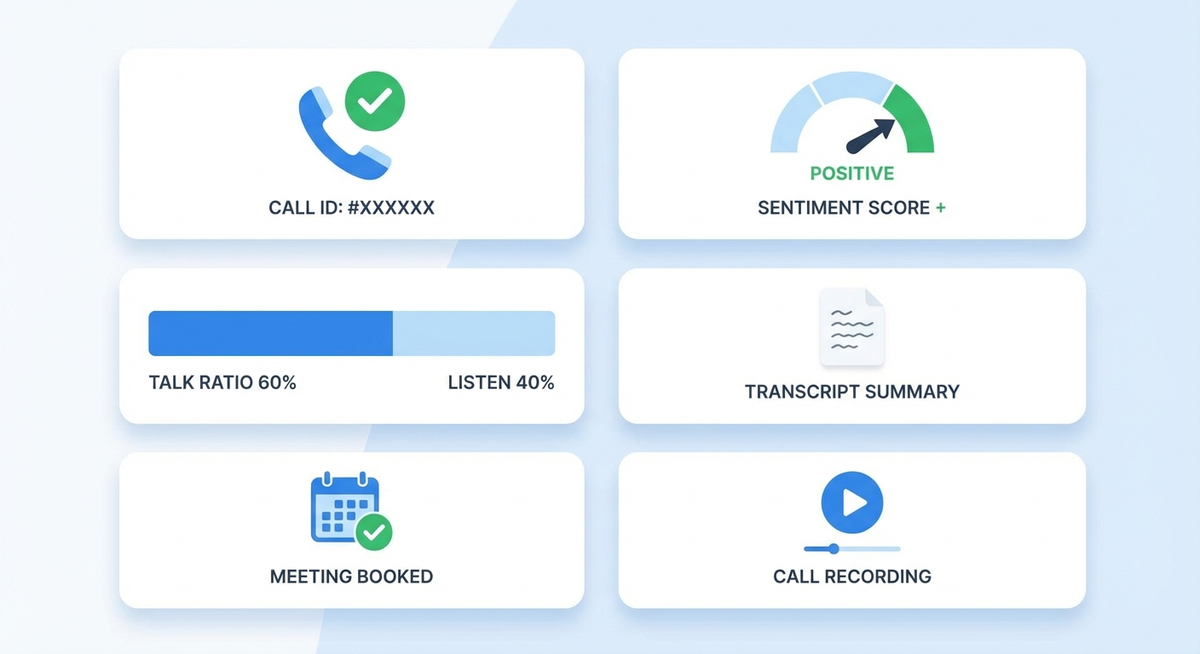
The Task record shows the call lasted 4 minutes and 12 seconds. The direction is Outbound. The disposition reads "Interested," with 94% confidence. Overall sentiment is Positive, with a score of 0.72. The rep talked 38% of the time, the prospect 62%. A solid ratio.
Under Outcomes, Meeting Scheduled is checked. Action Items lists three next steps the AI extracted from the conversation. The Recording URL links directly to the audio file. And the Description field holds the complete transcript, every word searchable inside Salesforce.
On the Contact record, the status updated to "Engaged." Last Disposition shows "Interested." Last Called reflects today's timestamp. The Stage field moved from "New" to "Meeting Booked," with the Stage Reason reading "Prospect agreed to demo on Thursday."
All of this happened in seconds, with zero input from the rep. They're already on the next call.
Pro Tips
A few recommendations from teams that have run this integration at scale. These small choices prevent headaches down the road.
Use Long Text Area for transcripts. Standard Text fields cap at 255 characters. That's about two sentences. Transcripts need 32,000 characters or more. Always choose Long Text Area for the Description field and Action Items.
Stick with Text fields for dynamic values. Disposition, Sentiment, and Status values come from AI models that evolve. If you use Picklist fields, you'll constantly add new values. Text fields accept whatever Personnect sends without maintenance.
Build Salesforce reports on Personnect data. Create a report filtering Tasks by Disposition or Sentiment. This gives managers instant visibility into call outcomes without opening a separate dashboard. Group by rep to spot coaching opportunities.
Consider a custom record type. Create a "Personnect Call" record type for Tasks. This separates automated call logs from manually created tasks, making list views and reports cleaner. It takes five minutes and pays off immediately.
Frequently Asked Questions
How long does the full setup take?
Most admins finish in about 30 minutes. The bulk of the time goes to creating custom fields, which is repetitive but simple. The actual connection and mapping take under five minutes.
Which CRMs does Personnect support besides Salesforce?
Personnect connects with over 30 CRMs, including HubSpot, Zoho, Pipedrive, Microsoft Dynamics, Copper, and Close. The field structure varies by platform, but the core data points remain the same.
Can I customize which fields sync?
Yes. The field mapping screen lets you enable or disable individual fields. If you only want transcripts and dispositions, turn off the rest. You can also change mappings at any time without disconnecting the integration.
Does it work with both Salesforce Lightning and Classic?
Both. Custom fields are platform-agnostic in Salesforce. Whether your team uses Lightning Experience or Classic, the fields and data sync identically. Page layouts may differ, so add your new fields to the appropriate layout for each interface.
Conclusion
You've now connected Salesforce to Personnect with 23 Task fields and 18 Contact fields. Every call your team makes will automatically log transcripts, dispositions, sentiment analysis, talk ratios, and pipeline updates. No manual data entry. No missed details.
Your reps stay focused on conversations. Your managers get complete reporting. And your CRM finally reflects what's actually happening on the phones. If you hit any issues during setup, check the field mapping screen first. Most problems come down to a mismatched API name or a field type that needs adjusting.